Sampler
The Sampler plays real recorded instruments under the keys: pick a piano, a marimba
or a small percussion kit and it plays, in tune, across the keyboard. It is a notes instrument: it plays whatever notes reach it, from the keys, MIDI, the piano roll or a
sequencer.
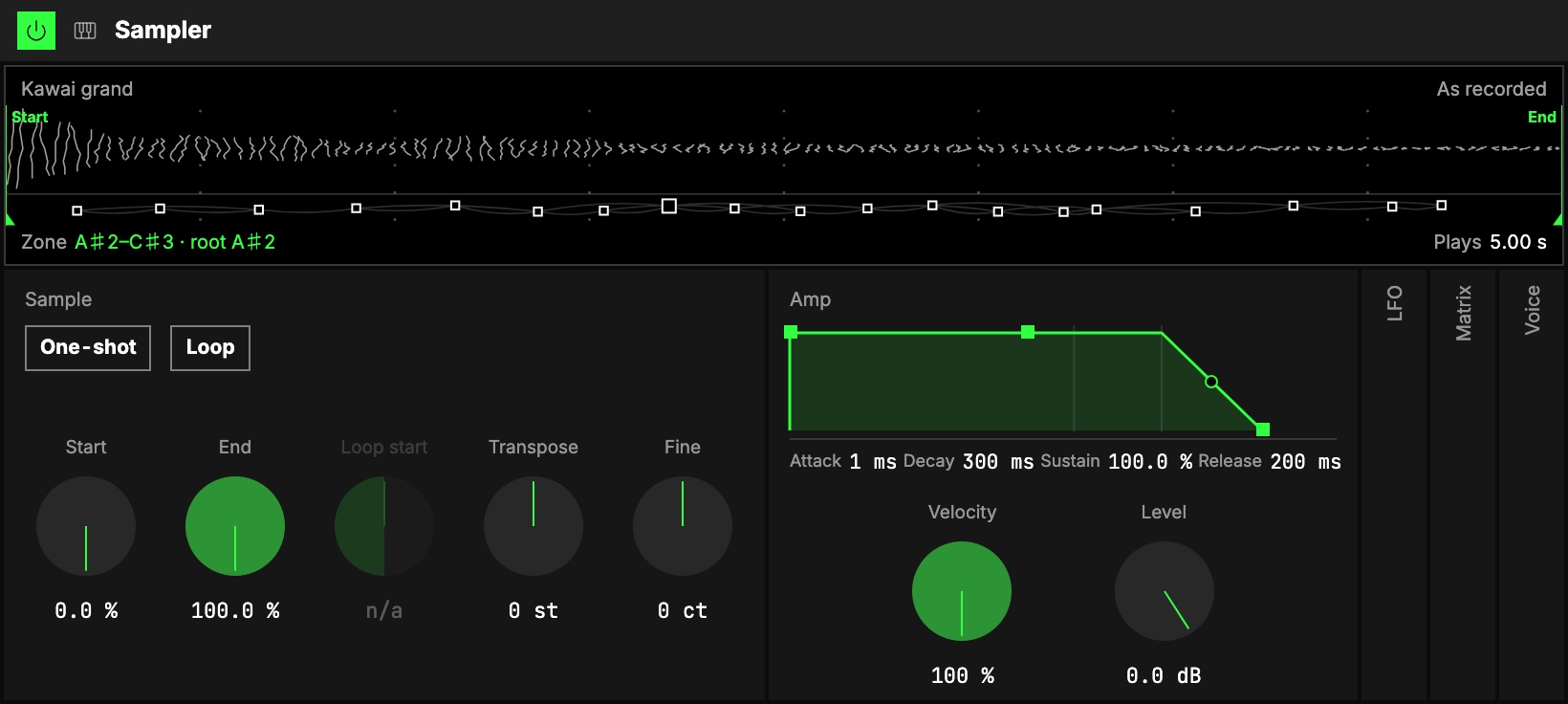
Picking an instrument
An instrument is a set of recordings laid across the keys (each one is a zone); the Sampler
picks the right one for every note.
The instrument's name is on the screen1, and in the Studio it is the button in the module's header.
Press that button to open the list of
libraries and their instruments. Each row shows what it is and its size.
While you play, the same list is the Sampler's own surface: open the playback panel and pick the
Sampler tab beside Piano roll. The instrument playing carries the mark; press another to load
it. A pick there changes the instrument for this session only; in the Studio it is saved with the
Orbiter.
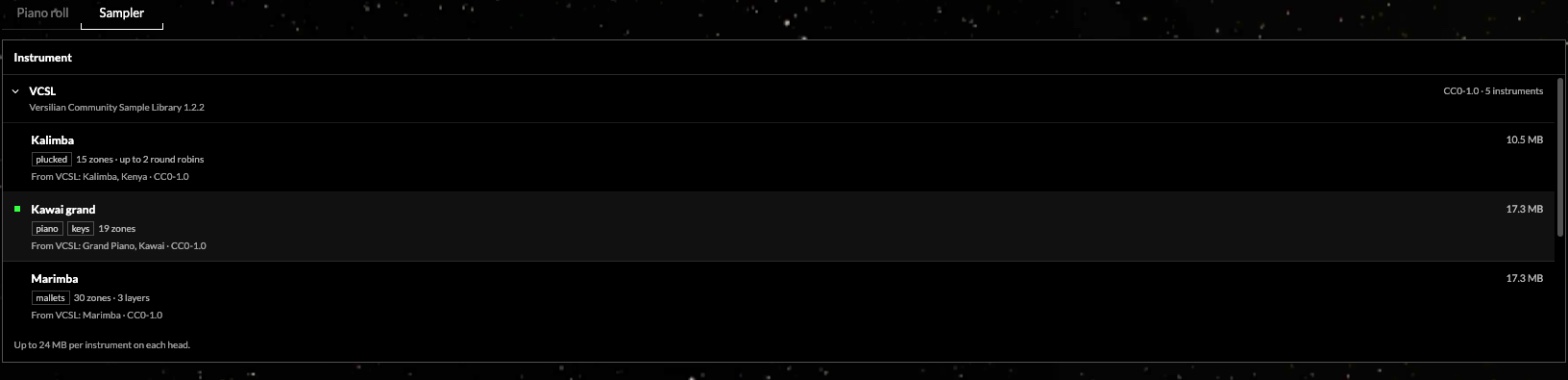
Pick one and it loads, then swaps in. The module keeps every value you set. While it loads, the
header shows a progress line and the screen says the Sampler is silent until it is ready. If a load
fails, the header says Failed and offers Retry.
Instruments are saved with the Orbiter (by name, not by file), and kept on your device after the
first load, so they open at once the next time.
The first library, VCSL (the Versilian Community Sample Library, public domain): Kawai grand,
Marimba, Kalimba, Tubular glockenspiel and a Percussion kit (cajon, snare, claps, closed hi-hat).
The kit's keys are named on every surface that shows notes (the piano roll, Keys, a drum
sequencer's voices).
Sample
Where in each zone a note plays. Start, End and Loop start are in % of each zone, so one knob
works the same on every zone of the instrument.
| Control | What it does |
|---|---|
| 2Start | Where a note starts reading. Raise it to skip the attack and start in the body of the sound. Acts from the next note. |
| 3End | Where reading stops, or turns back with Loop on. Lower it for shorter, clipped notes. |
| 4Loop start | Where the loop turns back to, in % of Start … End. Only with Loop on. |
| 5Transpose | Moves the pitch of every zone, in semitones; the zones stay on their keys. |
| 6Fine | Fine tuning, in cents. |
| 7One-shot | Every note plays to End whatever you do with the key: for drums. Loop is ignored while it is on. |
| 8Loop | When the read reaches End it turns back to Loop start (with a short crossfade, so it never clicks), and keeps looping through the release: sustained pads and drones from short samples. |
Amp
9The envelope every note goes through, drawn above its knobs: Attack, Decay, Sustain and
Release, then Velocity (how much a note's velocity moves its level; at 0 every note is
full) and Level. At the defaults (1 ms attack, sustain 100 %) the sample plays as recorded.
Velocity never changes which layer plays: a hard hit always picks the hard recording.
Attack, Decay and Release can be bent: see Envelopes.
LFO, Matrix, Voice
These three groups start folded; open them from their column.
- 10LFO: one LFO for the whole instrument: one of the Orbiter's LFOs, picked on its tab.
- 11Matrix: the Matrix every notes instrument shares. Modulation has the LFO's column over
Pitch (vibrato) and Level (tremolo). MIDI has Pitch (with the pitch bend, two
semitones), Level, Vibrato (the mod wheel's, on top of the LFO's) and LFO. A swell is
Mod › Level: the wheel brings the level up from where the Level knob stands. - 12Voice: the usual Voice group. With Legato, a note played over a held one keeps
the sample playing and only bends its pitch.
There is no filter in the Sampler: add a Filters or Multimode filter module after it to shape
every voice at once.
The screen
13The screen has two parts.
- On top, the sound you played last, as tall as it is loud. Start and End are handles you
can drag; with Loop on, a bar marks the part that repeats. - Below, the whole instrument: a small square for each zone at its pitch, octaves labelled (a kit
names its sounds). Each note sounding sends a thread up from its square.
Tap a zone's square to hear it: it plays that zone at its own pitch, through the chain.
The corners
The four captions above and below the picture are controls: Transpose and Fine above,
Level and Loop below. Drag one up or down (Loop: tap it, on or off); the thin bar under each
shows where it stands, and a double-click puts a number back to its default.
While a new instrument loads, the screen shows a thin progress line and stays silent until it is
ready; the captions say how far it is, or why it couldn't load.
Try it
- A piano that swells. Pick a piano, then Attack 400 ms in Amp: every note fades in, and the piano turns into a pad.
- A reversed-sounding start. Start 30 %: notes skip their attack and begin in the body of the sound.
- A sustained marimba. Pick a marimba, Loop on, Loop start 60 %, Release 1.5 s: held notes ring for as long as you hold them.
- A kit that plays to the end. Pick a percussion kit and turn One-shot on: every hit rings out whatever the note's length.
Mapping
In the Studio's Map mode, every number can be driven by an axisUno de los tres controles de interpretación de un Orbiter: X, Y y Z.. Two to try first:
- Start: from the attack to the body of the sound
- End with Release: from a stab to a ring
Toggles can flip One-shot, Loop, the LFO on and off, Mono and Legato. The instrument itself is
never on an axis: a preset carries it.
In a room
Everyone in a roomUna sesión a la que varias personas se unen para tocar juntas los mismos Orbiters, cada una en su dispositivo. hears the same notes and the same sound. A player whose device is still loading
the instrument hears nothing from it until it is ready; the room doesn't wait.
The player who holds the Orbiter can pick a new instrument from the Sampler tab while the room
plays, and every player hears it once their device has loaded it. Players who join later get the
instrument in use.