Scale
Scale keeps the notes in a key: a note outside the scale moves to a scale note, or isn't played at
all. Play any keys and nothing sounds wrong; put it after a Random
or a generator and its line stays in the key.
It is a MIDI effect: it sits in an Orbiter's chain before the instrument, after the generator if there
is one. A change applies from the next note.
Scale loads playing in the Orbiter's key: it moves outside notes to the nearest note of it. With no scale set on the
Orbiter every note is in it, so nothing changes; once the Orbiter has a key, Scale holds the notes to it.
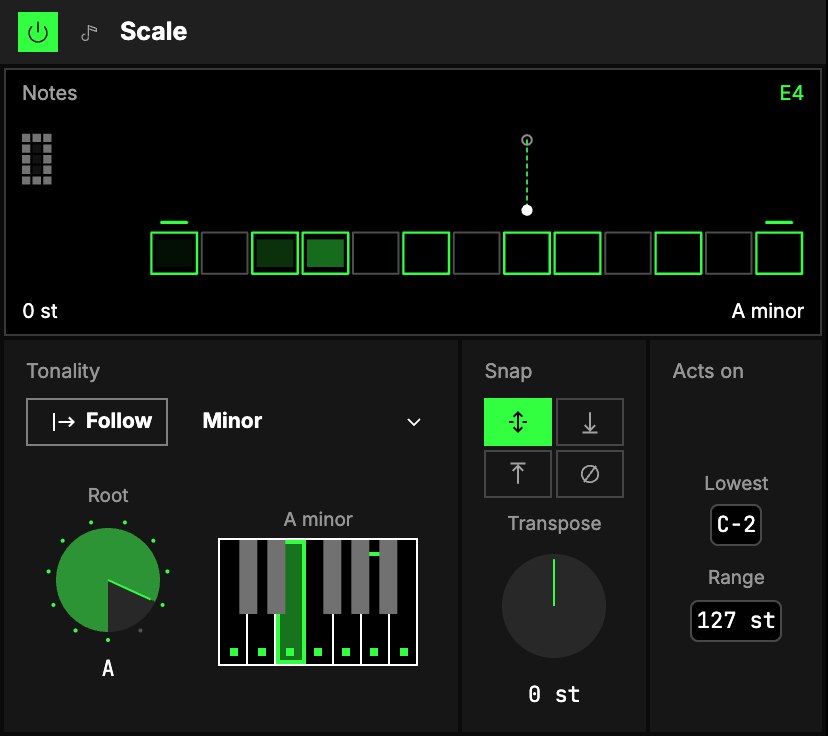
Tonality
| Control | What it does |
|---|---|
| 1Follow | On (as it loads), Scale plays in the Orbiter's key and scale and follows them when they change. Off, it has a root and a scale of its own, and the next three controls appear. |
| 2Scale | Its own scale, from a menu of 35 (Major, Minor, the modes, pentatonics, blues and more), or User. |
| 3Root | Its own root, C to B. |
| 4The keys | One octave from the root, with the scale's notes lit. Tap a key to put it in or take it out: the scale becomes User. The root is always in. |
Snap
5Snap is where a note outside the scale goes:
| Snap | A note outside the scale |
|---|---|
| Nearest (as it loads) | goes to the closest scale note; exactly between two, it goes down |
| Down | goes to the scale note below it |
| Up | goes to the scale note above it |
| Block | isn't played |
6Transpose moves every note Scale acts on before the snap, −36 … +36 st, so the result
is still in the scale.
Acts on
7Lowest and 8Range set which incoming notes Scale works on: from Lowest,
up to Range semitones above it. Notes outside pass untouched, so a bass line on the low keys can stay
free while the top is held to the scale.
The screen
9The Strip. One octave as thirteen cells, from the root on the left to the root on the
right; the cells with a bright outline are the scale's notes. A note comes in as a dot above its own
column, drops, and slides sideways to the cell it lands on. With Block, a note that isn't played
leaves a cross.
Play it
Tap a cell to hear that note through the Scale. With the User scale, Shift-tap or hold a cell
to put that note in or take it out (never the root; not while following the Orbiter).
The corners
- Transpose is the number at the top left: drag it up or down.
- Scale is the ladder at the top right: drag through the scales. Its first step, Orbiter,
plays in the Orbiter's tonality and follows it; any other is the Scale's own. - Root (bottom left) is a row of twelve dots: tap for the next. While following the Orbiter it is
only a reading, the Orbiter's root. - Snap (bottom right) is a row of dots: tap for the next (nearest, down, up, or not played).
Double-click a number to put it back to its default.
Try it
- Nothing sounds wrong. With the Orbiter's key set, add Scale in front of any instrument and play freely: every key lands in the scale.
- Its own key. Follow off, Root A, Scale Minor: this dimension stays in A minor whatever the Orbiter does.
- Only the notes of the scale. Snap Block: keys outside the scale are silent, so a glissando plays the scale and nothing between.
- A wandering line kept in key. Put Scale after a Random set to semitones: the jumps stay random and the notes stay in the key.
Mapping
AxesOne of an Orbiter's three performance controls: X, Y and Z. can drive Transpose, Lowest and Range; toggles can flip
Follow. The root and the scale are choices, never on an axis.
In a room
Every player in a roomA session that several people join to play the same Orbiters together, each on their own device. hears the same notes moved the same way: the snap depends only on the note and the scale.