Drum sequencer
The Drum sequencer plays drum patterns into an Orbiter's instrument. It works like a pad
controller: 116 pads (or 8) whose job changes with the 2pad function you pick, a
3small screen with 4four knobs, 5two real-time FX ribbons, and up to 32 beats, each 1 to 8 bars long.
Its controls appear in the Studio's drawerThe panel in the Studio that shows a module's controls and its screen. and, while you play, on the
play surfaceThe place where you play a Notes Orbiter by hand, in the Playback panel: the piano roll, and a tab for each generator in the chain (the Arpeggiator's keys, the Step sequencer's steps, the Drum sequencer's pads).; both show the same state.
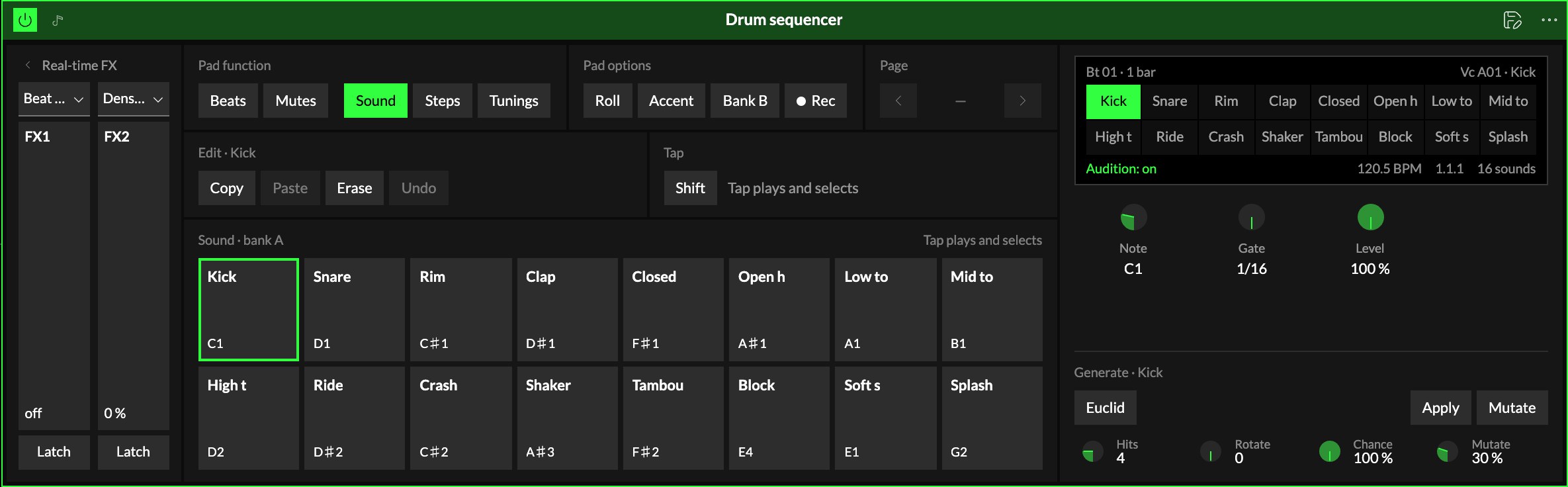
Your first beat
- Put the Drum sequencer in front of a drum instrument.
- In Sound, tap the kick; in Steps, tap pads 1, 5, 9 and 13.
- Back in Sound, tap the snare; in Steps, set steps 5 and 13.
- Press Play.
Pad functions
Pick what the pads do: Beats and Mutes work on the beat, Sound, Steps and Tunings on its notes. The buttons
around the pads follow the function: an action that would do nothing there is greyed out.
| Function | The pads… | Also available |
|---|---|---|
| Beats | pick the beat that plays | Beat roll, Bank B, Copy/Paste/Erase of the whole beat, Length |
| Mutes | mute or unmute each voice | Beat roll, Bank B, Unmute all |
| Sound | play each drum voice (bank A, or bank B with Bank B) and select it | Roll, Accent, Rec, Generate, Copy/Paste/Erase |
| Steps | set the selected voice's steps; hold a pad to edit that step on the knobs | Roll, Accent, Page, Generate, Copy/Paste/Erase of the voice's row |
| Tunings | play the selected voice higher or lower: the same sound at a different pitch on every pad | Roll, Accent, Rec |
The four knobs under the screen change with the function too.
6Roll follows the function. In Beats and Mutes it is Beat roll: the beat repeats a short slice,
at the roll rate (the Roll knob in Beats), from where you switched it on. In the other functions,
Roll repeats a pad while you hold it. Their names and values are shown on
the screen.
Switching beats
In Beats, tap a pad to pick a beat. While the transport is stopped it switches at once. While it
plays, the new beat starts on the Orbiter's launch gridThe grid an Orbiter's starts, jumps and switches wait for, so that they land on a bar line. (the grid picker in the header, also the
first knob in Beats), so the switch always lands on a bar line. A mute waits for the grid the same
way.
While a switch waits, its pad blinks and counts down the beats left, like Play does when it waits
for the grid. Tap the beat that is playing to take the switch back.
Naming beats
In Beats, hold a pad (or double-click it) to name its beat, up to 12 characters. Names are saved
with the Drum sequencer and shared with everyone in a room.
Tunings
Pick a sound in Sound, then open Tunings: every pad plays that same sound at another pitch. A
snare stays a snare, higher or lower. On a drum instrument (the Analog drum synth, the Hybrid drum
synth, a Sampler kit) the pad keeps its drum and only its pitch moves; on a synth the pads play
different notes.
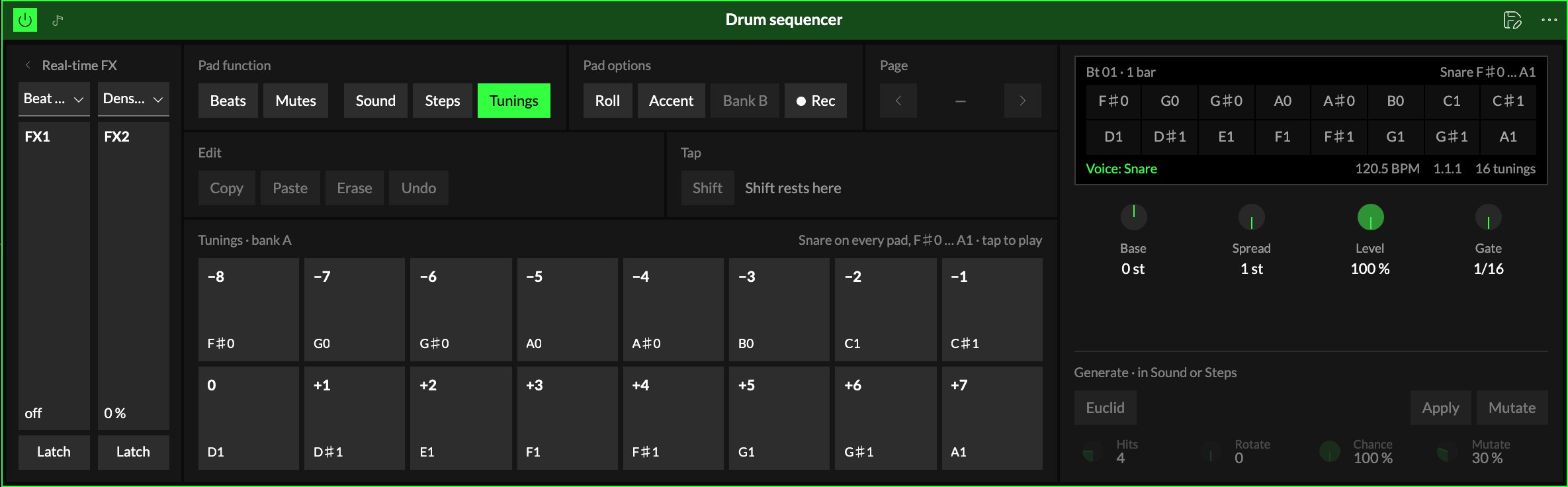
The pads follow the Orbiter's key and scale: each pad is one step of the scale away from the next.
With no scale set, a step is a semitone.
- 1Base sets which step the middle pad plays. At 0 it is the sound's own pitch.
- 2Spread sets how many steps lie between one pad and the next (1 to 3).
Each pad shows its step and the note it plays. A Sampler kit's sounds are pitched two octaves at most,
up or down. A sound that is only noise, like a clap, has no pitch to move and plays as it is.
Shift
Shift flips what a tap does. Hold the Shift key, or use the Shift button: hold it for one
tap, or tap it to keep it on (it stays lit) until you tap it again. It is the same Shift on every
play surface of the Orbiter.
| Function | A tap… | With Shift |
|---|---|---|
| Beats | switches on the launch grid | switches at once |
| Mutes | mutes or unmutes on the launch grid | mutes or unmutes at once |
| Sound | plays the voice and selects it (Audition on) | selects it without sounding it |
With the launch grid off, Shift waits for the bar instead. The right end of the status line always says
what a tap does now, for example "Tap launches in 1 bar".
Recording
Press 7Rec to record what you play into the beat that is playing:
- Pick Sound or Tunings.
- Press Rec. The button lights; it records while the transport plays.
- Play the pads, by tapping or from MIDI pads mapped to them.
Each hit lands on the step nearest to when you heard it, keeping how far off the grid it was, its
velocity (Accent records at full velocity), and in Tunings its pitch (it keeps that pitch if the key or scale changes later). The result is ordinary steps:
open Steps to edit them, or Undo to take a hit back. Press Rec again to stop.
Generate
8Generate writes rhythms for the selected voice (in Sound or Steps):
- Euclid plays the voice's row as an even rhythm, live: Hits per bar, turned by Rotate,
with a Chance per hit. Mutate moves hits and adds ghost notes anew every bar. Nothing is
written while it plays. - Apply writes the rhythm into the row and turns Euclid off.
- Mutate (the button) nudges the written row once, by the Mutate amount.
Edit
9Copy, Paste and Erase act on the voice's row in Sound and Steps, and on the whole beat
in Beats: copy a beat, pick another, paste. Undo takes back the last edit.
Real-time FX
Two ribbons bend the notes on their way out: Beat roll, Stutter, Skip, Reverse,
Density, Velocity, Swing or Transpose. Pick the effect from the menu above each
ribbon (the button with the arrow), then press and slide on the ribbon; let go and it falls back to
0. With 10Latch on, the ribbon keeps its amount when you let go. Latch is the same in the module
and on the play surface.
The screen
With the Drum sequencer's Panel set to Screen (the Visuals step in the Studio), its screen shows
in the play monitor while it leads the chain: the playing beat's voices across the bar, the playhead,
and the beat that plays and the one that waits, by name.
You can edit there too: tap a cell to set a hit, tap it again to clear it. It writes into the beat
that is playing, and the screen always offers a few rows to write in, even on an empty beat. For
velocity, chance, ratchet and offset, use Steps.
Try it
- Hats without drawing them. Select the closed hat, open Generate, turn Euclid on and set Hits to 11: an even pattern plays at once. Apply writes it into the row.
- A snare across the pads. Tap the snare in Sound, then open Tunings: the sixteen pads play the same snare at sixteen pitches, in the Orbiter's key. Press Rec and play a fill.
- A second beat for the chorus. In Beats, Copy beat 1, tap pad 2 and Paste, then change it. While it plays, a tap on either pad switches on the next bar.
Mapping
There are two kinds of mapping, one per place.
Axes and toggles (the module). In the Studio's Map mode, the module's controls show map
badges like any module's:
- axes can drive Swing, Human, Roll rate, the FX ribbons' amounts and the Euclid
knobs (Hits, Rotate, Chance, Mutate); - toggles can flip Roll, Beat roll, Euclid, each ribbon's Latch, and each voice's mute (switch
to Mutes to see the mute badges on the pads).
A control an axis or toggle drives is locked in the editor and follows it.
MIDI hardware (the play surface). In MIDI learn mode every control of the play surface can be
learned; pads keep your velocity.
In a room
Everyone in a roomA session that several people join to play the same Orbiters together, each on their own device. hears the same beat on the same steps. The beats and their names are shared by all the players.