Release
Where to start
Go to Release → New Orbiter.
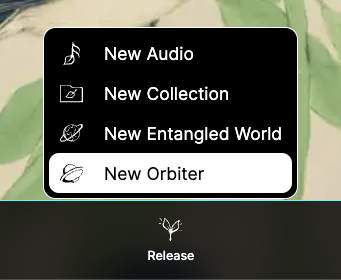
The Orbiter Studio opens. You build the Orbiter in its first two steps, Instrument and Visual:
the Quickstart goes through them, and Edit explains
how to map a control to an axis. This page is about the last step, Release.
The audio you pick with Choose preview audio while you build is only for listening: it does not
bind the Orbiter to that audio.
1) Cover
Upload an image that will identify your Orbiter.
- You can upload your own design.
- You can generate an image using the regeneration button, then edit it.
Orbiter images are displayed in a hexagonal frame. If needed, open the guidelines to design for this shape.
2) Orbiter Name
Set the Orbiter Name: a unique name that identifies your Orbiter on the platform.
You can regenerate the name if you need a starting point.
3) Who can see it
Set who can:
- View the Orbiter
- Publish with the Orbiter
- Edit the Orbiter
You can also set general access rules (for example: anyone with the link can view, publish or edit).
By default, Orbiters are visible and searchable.
4) Draft and release
- Your work is saved as a draft by itself while you build: come back to it whenever you like.
- Press Release Orbiter when you are ready to publish.
After release, you can reuse the Orbiter across different audios and Entangled Worlds.