Sensors
Sensors let you play an Orbiter by tilting a phone. Tilt drives the same X, Y, Z controls you
would otherwise move on screen, so everything you know about dimensions, Cosmic LFO and equilibrium
still applies. This page covers what is the same everywhere first, then the cases where you play
several Orbiters at once.
Move over the phone to tip it and roll it.
| On the deck | In Sensors |
|---|---|
| The phone on its stand | your phone, held the way you play |
| Turning it, like a wheel | turns X, the first knob |
| Tipping it front to back | turns Y, the second knob |
| Rolling it to one side | turns Z, the third knob |
| A needle straight up, at 0° | the equilibrium: where the phone was when you calibrated |
| The button on the deck | Calibrate |
A knob reaches its end, −180° or 180°, when the phone is tilted about 90° away from that centre. Tilt two
ways at once and the knobs lean on each other a little: tipping and rolling together also moves X.
Turning a sensor on
Open the Sensors panel. Under each axis knob there is a hexagon: the sensor switch for that
axis. Press it to let the phone move the knob; press it again to take the knob back by hand. A switch
that is on is filled.
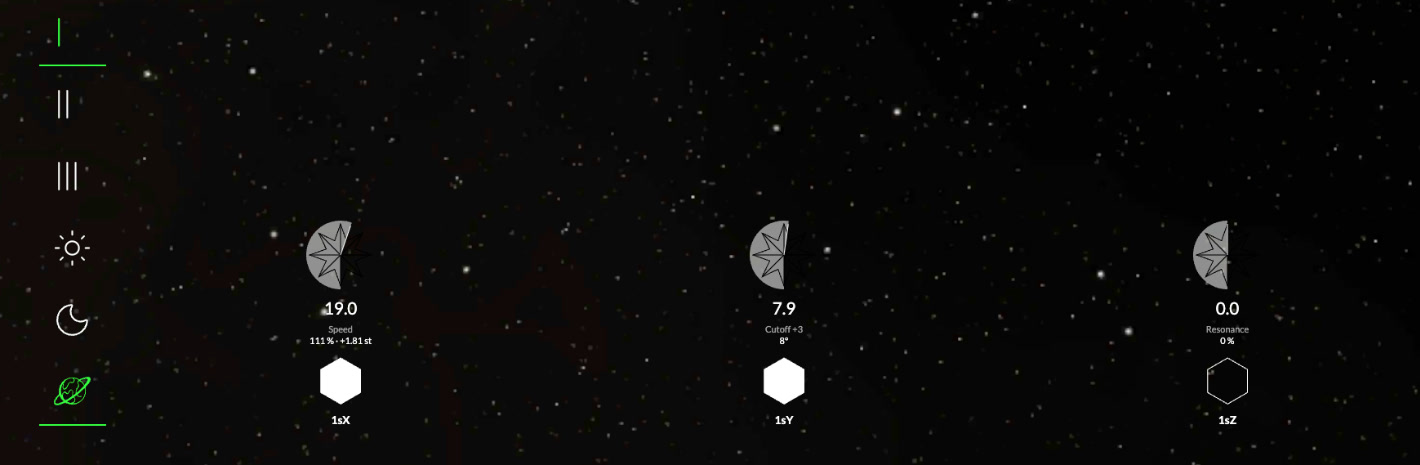
| Control | What it is |
|---|---|
| 1The knob | the axis the phone moves, the same knob you would turn by hand |
| 2The sensor switch | named by the dimension and the axis: 1sX is the sensor on X in dimension I |
The switches are per dimension, and the Moon and the Star have their own. Turning on 1sX on
the World's dimension I does not turn it on in dimension II, nor on the Star: go to that dimension or
body and set the switches you want there. Switching back restores what you had.
An axis that drives nothing in a dimension has no knob there, so it has no switch either.
The first time you turn a sensor on, the phone asks for permission to use motion. Accept it once.
Calibrating
Hold the phone the way you want to play and press Calibrate, the target in the top bar at the
top right of the screen, shown while the Sensors panel is open. With the phone as a remote, you
still press it on the desktop. That position becomes the centre: the equilibrium of X, Y and Z.
Tilt away from it to move the controls, tilt back to return.
Where the phone comes from
There are two ways to use sensors. The switches work the same in both, and Calibrate is always on the screen that shows the Orbiter.
The phone is the Orbiter
Open an Orbiter on your phone. Its own sensors drive it directly: turn on the switches in the
Sensors panel and tilt.
The phone controls the desktop
Open an Orbiter on the desktop and open the Sensors panel. The first time, it shows a QR code:
scan it with your phone.
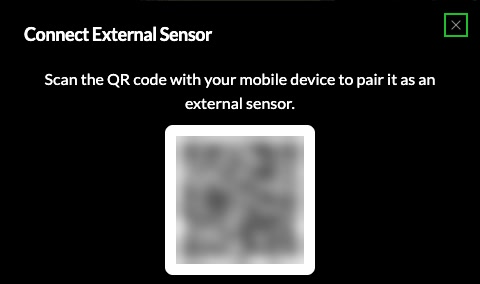
The phone opens the phone remote (below) and the dialog closes. A phone button appears at the top
right, beside Calibrate: green while the phone is connected, red if it drops. Press it to reconnect:
open the phone remote again and it finds the desktop on its own, or scan the new QR code from a fresh
tab.
The phone remote
The phone remote is laid out like the Orbiter's play screen, so a hand that knows one knows the
other. Everything you need while playing sits at the bottom, under your thumb.
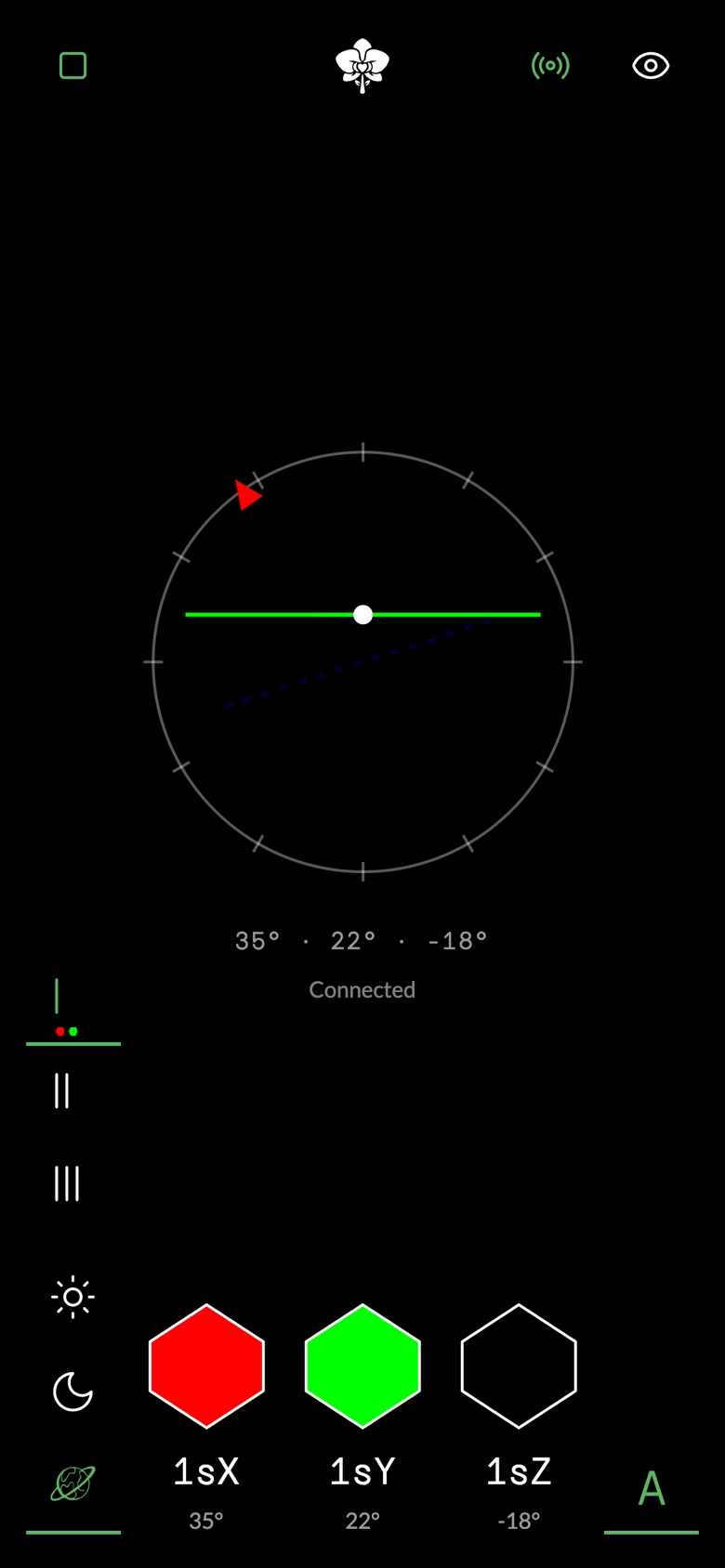
| Control | What it does |
|---|---|
| 1Start sensors | Starts and stops the phone's motion sensors. You press it once, at the beginning; on an iPhone this is when it asks for motion, and the button pulses until you do. |
| 2Paired | Green while the phone is connected to the desktop. |
| 3Hide controls | Leaves only the tilt on screen: see Sensors only. |
| 4Tilt | What the phone is doing: the red mark turns with X, the green line lifts with Y, the dashed blue line rolls with Z. An axis whose sensor is off fades. The angles are written underneath. |
| 5Dimensions | The dimensions of the body you picked, as in play. Small coloured marks under a dimension show which of its sensors are on. |
| 6Star, Moon, World | Picks the body. The desktop goes there too, and when the desktop moves to a body, the phone follows. A body the Orbiter does not have is greyed out. |
| 7Sensor switches | The same switches as on the desktop, with the same names and the axis's colour when on. The value underneath is what the sensor sends. An axis that drives nothing in this dimension is left out. |
| 8Orbiters | The Orbiters open on the desktop: see Several Orbiters at once. |
What you set on the phone is what the desktop shows, and the other way round: they are the same
switches.
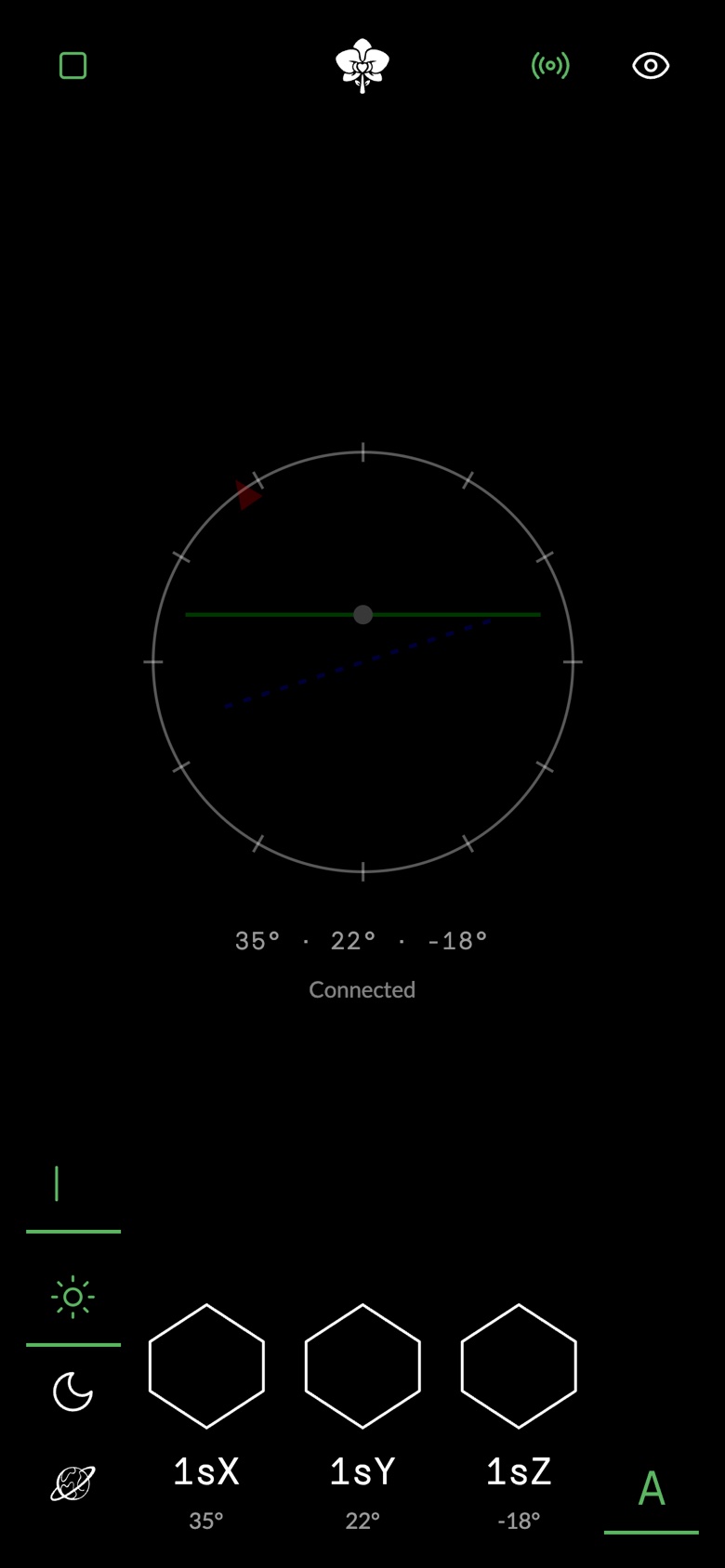
Picking the Star or the Moon shows that body's own dimensions and its own switches, all off until
you turn them on:
Several Orbiters at once
When more than one Orbiter is open on the desktop, each Orbiter has its own sensor switches, per
dimension and per body, exactly as above. Turning 1sX on for one Orbiter does not turn it on for the
others.
From the desktop
Set the switches on the Orbiter you want the phone to move. With several Orbiters selected, tilt
moves the selected ones that have that axis turned on.
From the phone
The phone remote shows the open Orbiters as A, B, C, D in the bottom right, A at the bottom. When
the phone pairs, A is picked for you. With only one Orbiter open, that one is always driven: it cannot be untapped.
Tap the ones you want to play: one or several. The phone drives only those:
- The dimension and the body you pick on the phone switch the Orbiters you tapped, and only
those. - The sensor switches on the phone turn the axis on for the Orbiters you tapped, and only those.
The desktop shows it. - Tilt moves the Orbiters you tapped, on their current dimension, on the axes you turned on.
Selecting Orbiters on the phone does not change what is selected on the desktop, and selecting on
the desktop does not change the phone. They are two hands on the same instrument.
With several open, you can untap them all; then the phone drives nothing: tilt and switches do nothing until you pick one.
The phone's switches and dimensions describe the first Orbiter you tapped. Turning an axis off
on the desktop for that Orbiter turns it off on the phone too; it is the same switch.
Sensors only
On the phone, Hide controls 3 clears the rail, the switches and the Orbiters to leave a
clean surface for tilting. Start and Hide stay. The phone remembers this choice; press it again to
bring the controls back. If no Orbiter is picked, the Orbiters stay on screen so you can pick one.