Sync
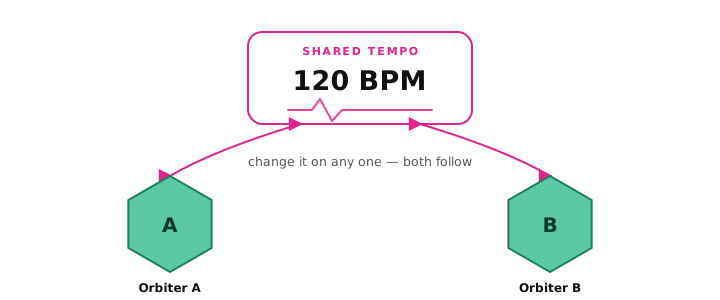
Sync lets Orbiters play together on one shared tempo: several Orbiters on the same screen, or
Orbiters opened by different people in the same session. Turn it on and they lock to the same beat;
change the tempo from any one of them and the others follow.
Turning Sync on
Each Orbiter has a SYNC button.
- Turn SYNC on to join the shared tempo.
- The badge next to SYNC shows how many are playing together.
- Turn SYNC off and the Orbiter goes back to playing on its own.
Who sets the tempo follows one simple rule:
- The first Orbiter to turn SYNC on starts the session at its own tempo.
- Anyone who syncs after that adopts the tempo that's already going: you don't have to match
it by hand, and joining never pushes your speed onto everyone else. - Turning SYNC off keeps your current tempo: the Orbiter carries on at the speed it was just
playing: it never jumps back to an older value. From there the tempo is yours again.
Every player has a tempo
The BPM number on each Orbiter is that player's tempo. What it means depends on SYNC:
- Synced: the number is the shared tempo, one shared clock for everyone. Set it any way
(type a new BPM, use the speed control on a synced Orbiter, or send MIDI) and every synced
Orbiter follows. - Not synced: the number is that player's own tempo. Change it and only that Orbiter
re-speeds (with Warp on you hear it stretch, like a pitch fader); it never moves the shared tempo
or any other player. - The change holds: a tempo only moves when you deliberately change it. Loading another Orbiter
into the session never changes a tempo that's already playing.
Warp: follow the tempo, or play free
Each Orbiter has a Warp switch (on by default), in the Playback panel.
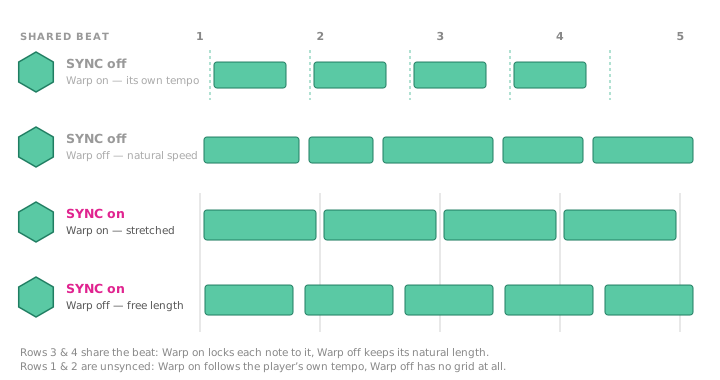
Warp means follow the tempo: the shared one when synced, the Orbiter's own BPM number when not.
With Warp off, the Orbiter plays at its natural recorded speed.
| Your Orbiter | What you hear |
|---|---|
| SYNC off · Warp on | Follows its own BPM number: change it and the audio stretches |
| SYNC off · Warp off | Plays at its natural recorded speed |
| SYNC on · Warp on | Follows the shared tempo: stretched to lock with everyone |
| SYNC on · Warp off | Stays in the session but plays at its natural speed |
Launch grid: start and jump on the bar
Next to SYNC, each Orbiter has a launch grid picker (None by default). Pick a grid (1 bar,
4 bars…) and that player's starts and jumps land on the beat:
- Play comes in on a bar line: a synced player waits for the next shared bar (you see the
countdown), an unsynced player (Warp on) starts right on its own nearest bar line. - Moving the playhead while playing doesn't jump immediately: it waits and lands on the next
bar, so the groove never stumbles. The countdown shows when. - The grid is per player: each Orbiter keeps its own. To set several at once, select them
together and pick a grid: every focused player adopts it. - Set it to None and everything is immediate again.
Speed vs pitch
The Orbiter's speed control works in Speed (%) or in Pitch (semitones). Semitones move the
speed more steeply than a percentage, so a small move can change the BPM a lot (one octave up is twice
the speed). If a speed change feels bigger than you expected, you are likely in pitch mode.
Same screen vs different people
- Same screen: several Orbiters open together lock with no setup; just turn SYNC on.
- Different people / windows: joining the same roomA session that several people join to play the same Orbiters together, each on their own device. lets everyone share one tempo across
devices. Turn SYNC on after joining and you adopt the room's tempo.