Your first Orbiter in 5 minutes
In five minutes you will build a small Audio Orbiter: a player for an audio you choose, one reverb, and an axisOne of an Orbiter's three performance controls: X, Y and Z. that turns the reverb up as you move it. Then you play it and release it. You need to be signed in to Plantasia Space.
- Release menu
- Instrument step
- Visual step
- Release step
1. Start a new Orbiter
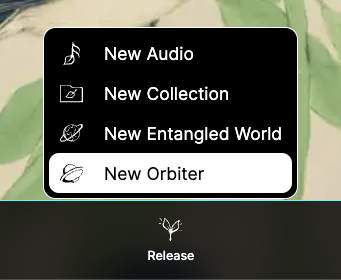
Open Release → New Orbiter. The Orbiter Studio opens on its first step, Instrument: the Orbiter on its stage at the top, and the rack you build it in below. The other two steps, Visual and Release, come later.
A new Orbiter starts as the World alone, your tracks: everything in this quickstart happens in World I. The Moon (return tracks) and the Star (the main bus) are there only once you add them, with Add Moon or Add Star. If you know a DAW, Orbiters for DAW users translates each body.
2. Choose what it plays
The empty rack asks What does this Orbiter play? Pick Audio: the Orbiter plays an audio you choose.
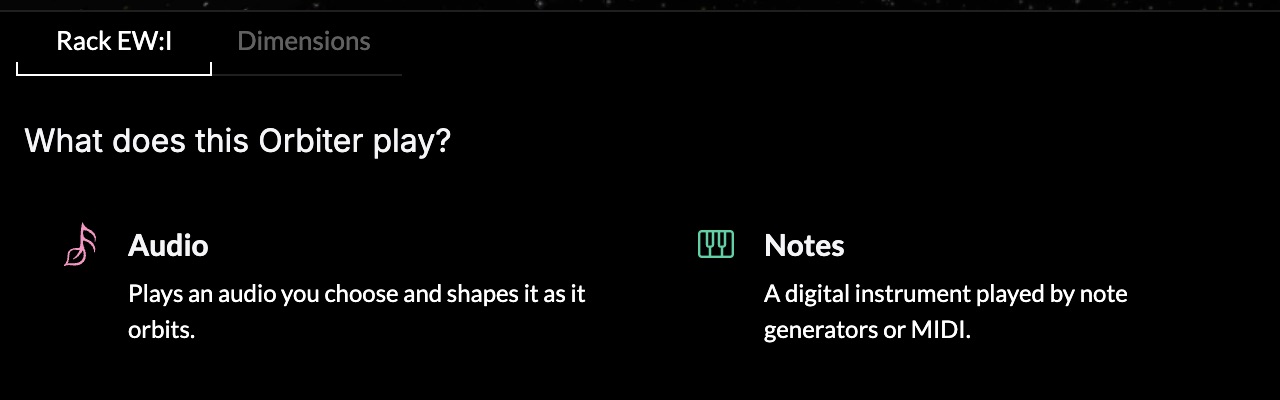
Press the empty Instrument slot and pick the Audio player.
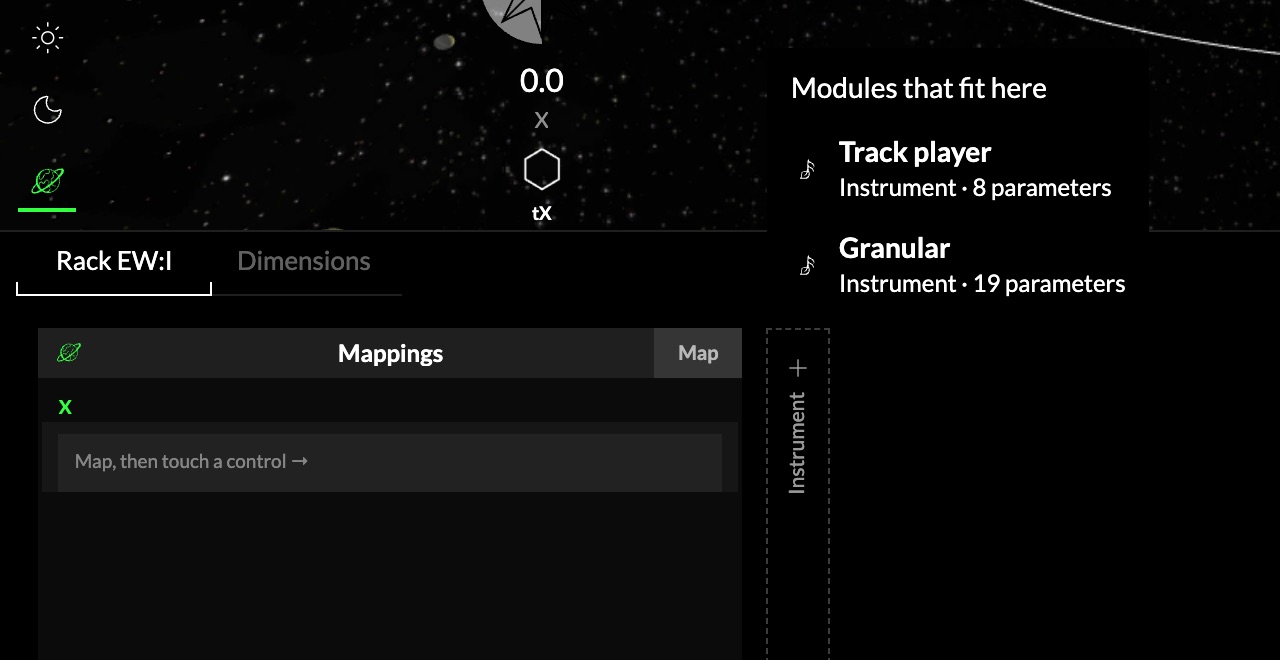
The Audio player starts with the audio the Studio already plays. To build with another, press Preview audio in the Audio player's header (or the audio button next to the Orbiter's More) and pick one. It is only what you listen to while you build: the Orbiter can later play any audio.
Notes builds an Orbiter that plays notes, with a synth or the Sampler, instead. See Instruments for the difference.
3. Add one effect
Press the Audio effect slot after the Audio player. Under One — one-knob modules, pick Reverb: the One Reverb, a whole reverb on a single Amount knob. It goes in World I, after the player.
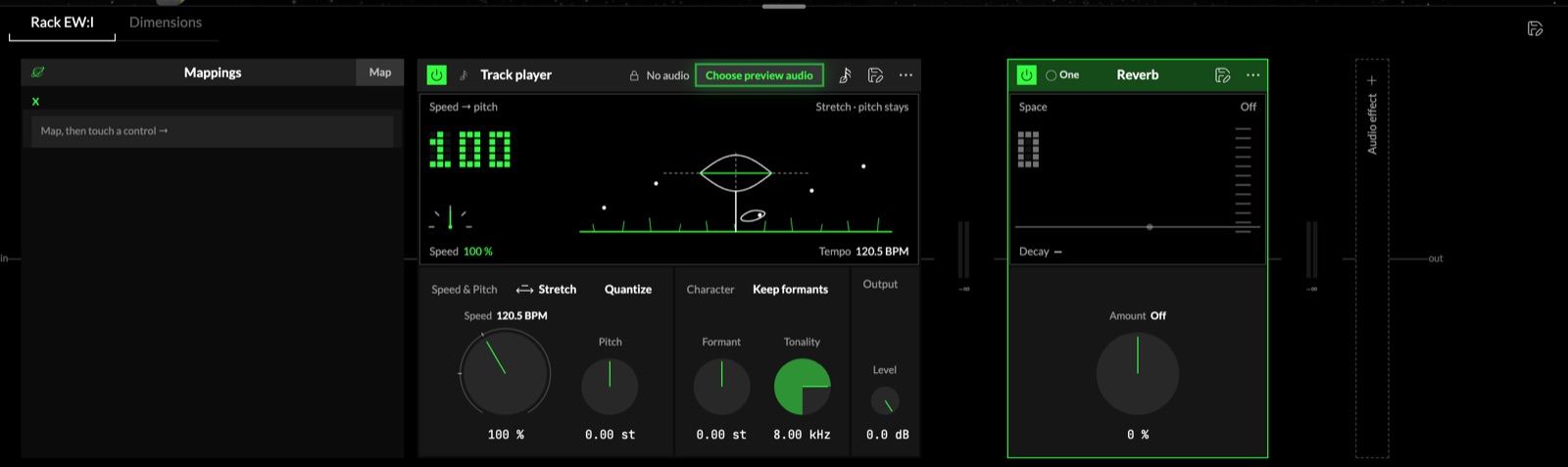
It loads at Amount 0 %, so you hear no change yet: see How effects load.
4. Map it to an axis
- Press Map in the Mappings column. The X axis on the stage turns red: it is the axis you are mapping. Touch Y or Z on the stage to map one of those instead.
- Every control in the rack now shows a map badge. Press the One Reverb's Amount.
The mapping appears in the column as X · Amount, with three values: min (−70 %), equilThe value a mapped control takes while its axis rests in the middle, between its minimum and its maximum. (0 %) and max (70 %). With the axis at rest, Amount sits on its equilibrium, 0 %: no reverb. Moving X one way brings in the One Reverb's hall, the other way its plate.
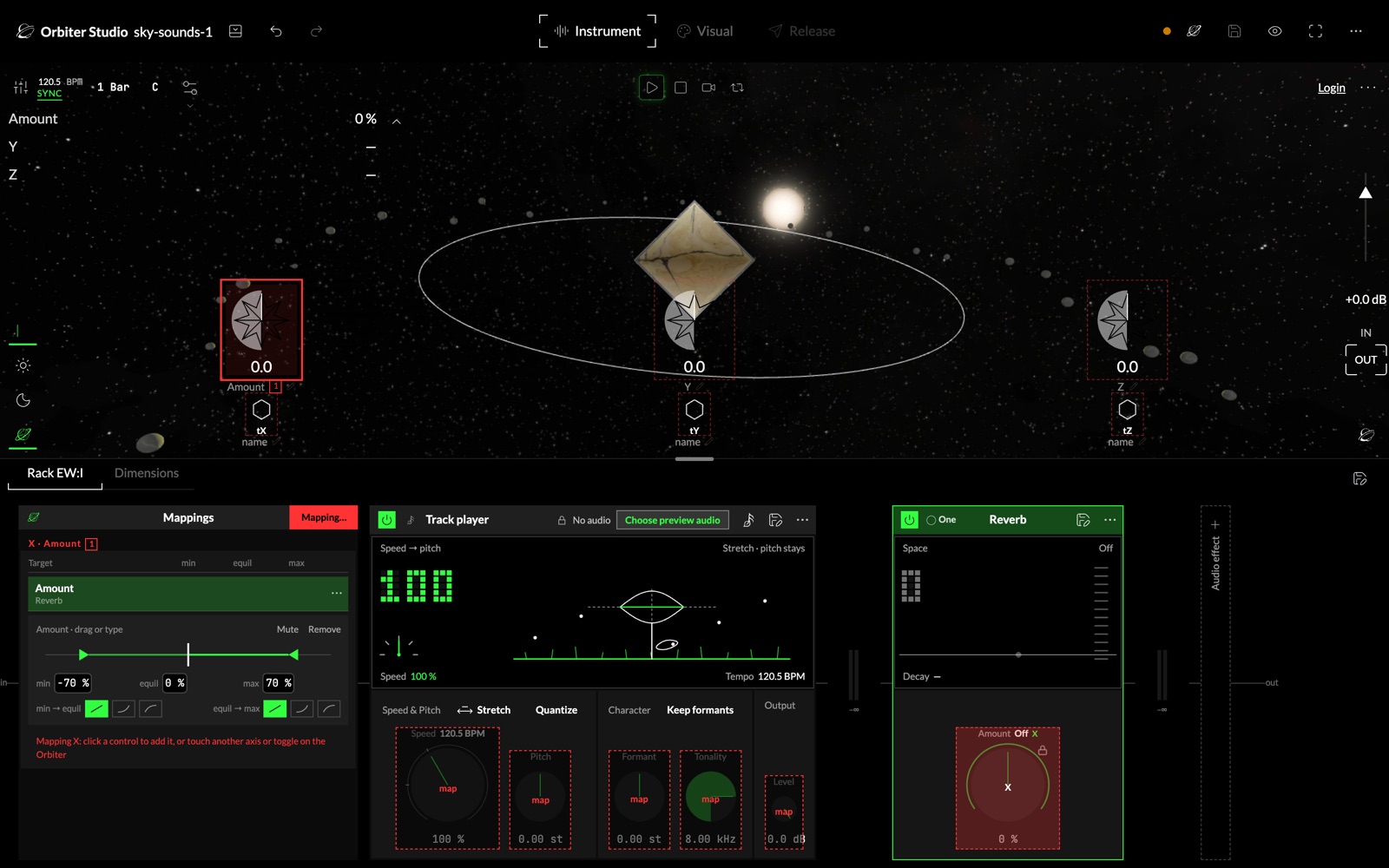
Press Mapping… to leave Map mode.
5. Play it
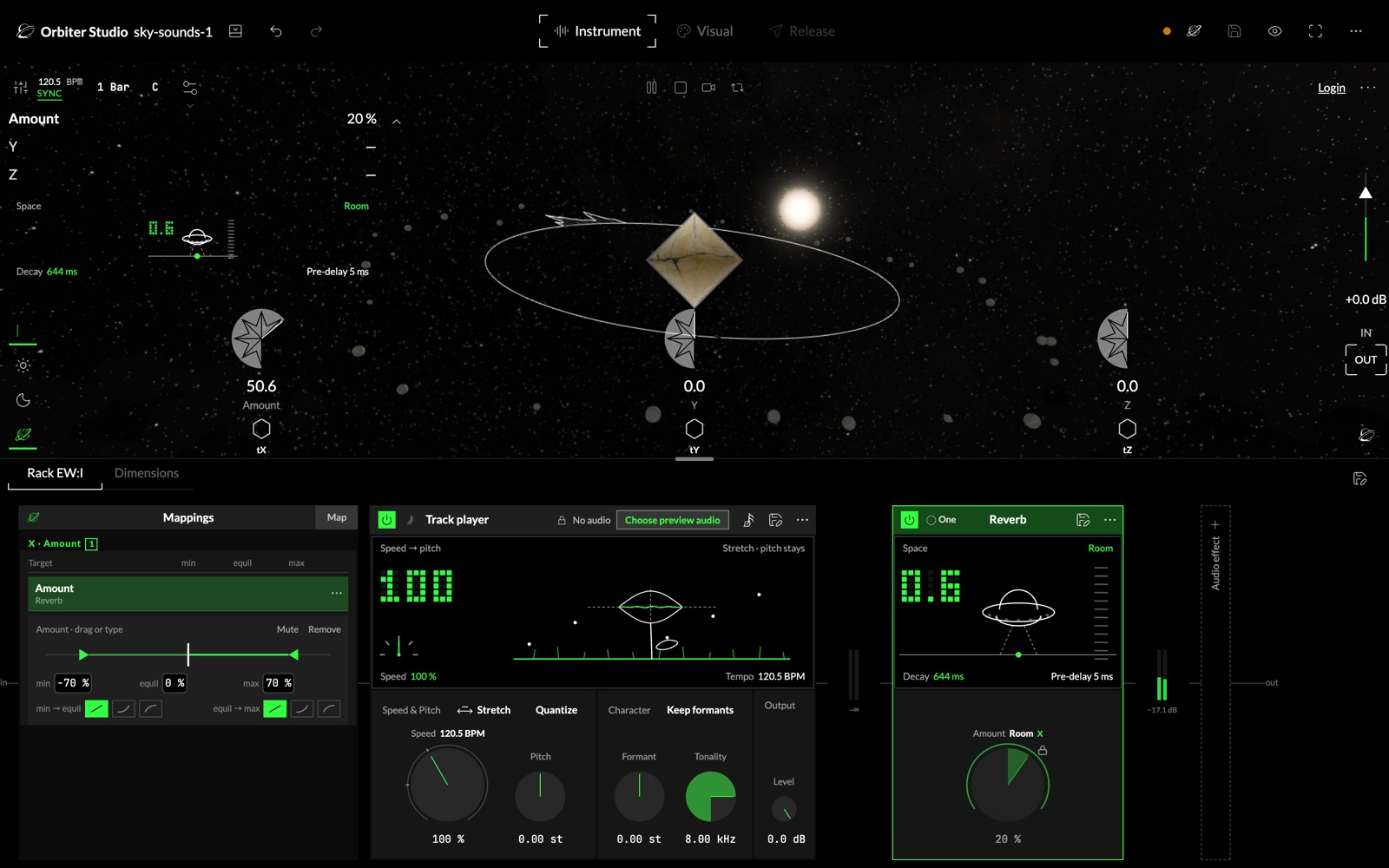
Press Play at the top of the stage, then drag the X axis up. The axis now carries the name of what it moves, Amount, and the One Reverb follows it: the sound goes from dry into a room, and further up into a hall. Drag it down for the plate.
6. Choose its look
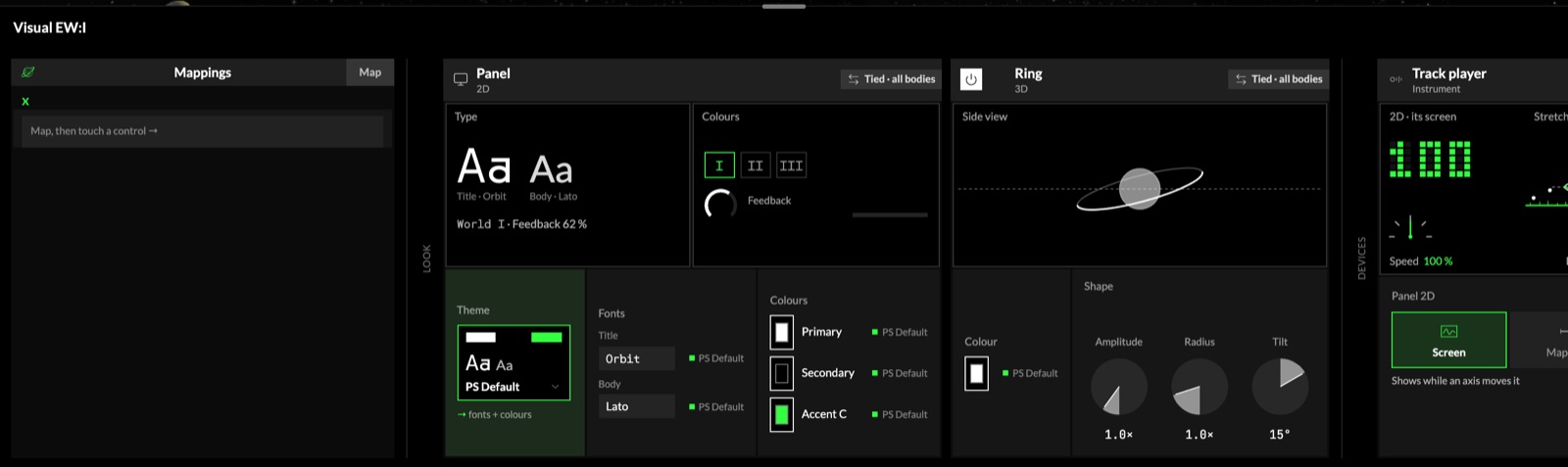
Open the Visual step. Everything already has a designed look, so you can keep it and move on, or change it:
- Panel (2D): the Orbiter's controls on screen. Pick a Theme, or set its own fonts and colours.
- Ring (3D): the ring around the Orbiter, its colour and its shape (Amplitude, Radius, Tilt).
- Devices: what each module shows on the play monitor, its Screen or its Mapping. The monitor shows the ones that are on, in the order you keep them here (Move earlier, Move later): row by row, three across and two down. Six show at most: turn one off to show another.
The Panel and the Ring start Tied · all bodies: one look for the whole Orbiter.
7. Release it
Open the Release step: give the Orbiter a cover and an Orbiter Name, choose who can see it, and press Release Orbiter. Until then, your work is saved as a draft by itself. See Release and Edit.
Next
- More instruments: the Sampler, or a Notes Orbiter with up to three instruments.
- More effects: where an effect can go, a World dimension (a track), a Moon (return tracks) or the Star (the main bus), once you add them, in Audio effects.
- Know a DAW? The World, the Moon and the Star as tracks, return tracks and the main bus, in Orbiters for DAW users.
- Play it: how to open and play a released Orbiter, in Interact.
- Make it play notes: sequencers, arpeggios and chords before the instrument, in MIDI effects.
- More ways to play: Sync several Orbiters on one tempo, or tilt a phone with Sensors.